Frequently Asked Questions
No matching questions. Try different words, or email us at [email protected].
How do I add a record?
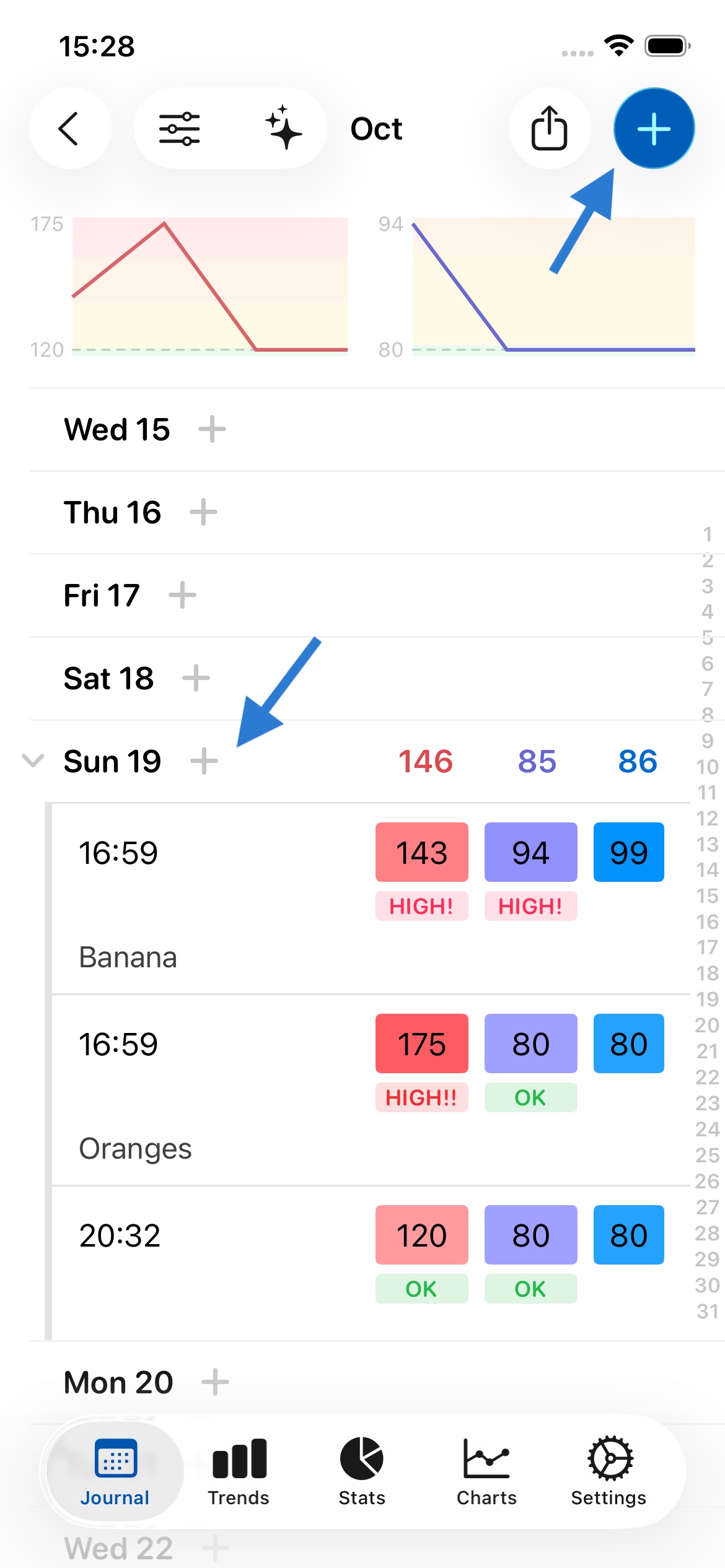
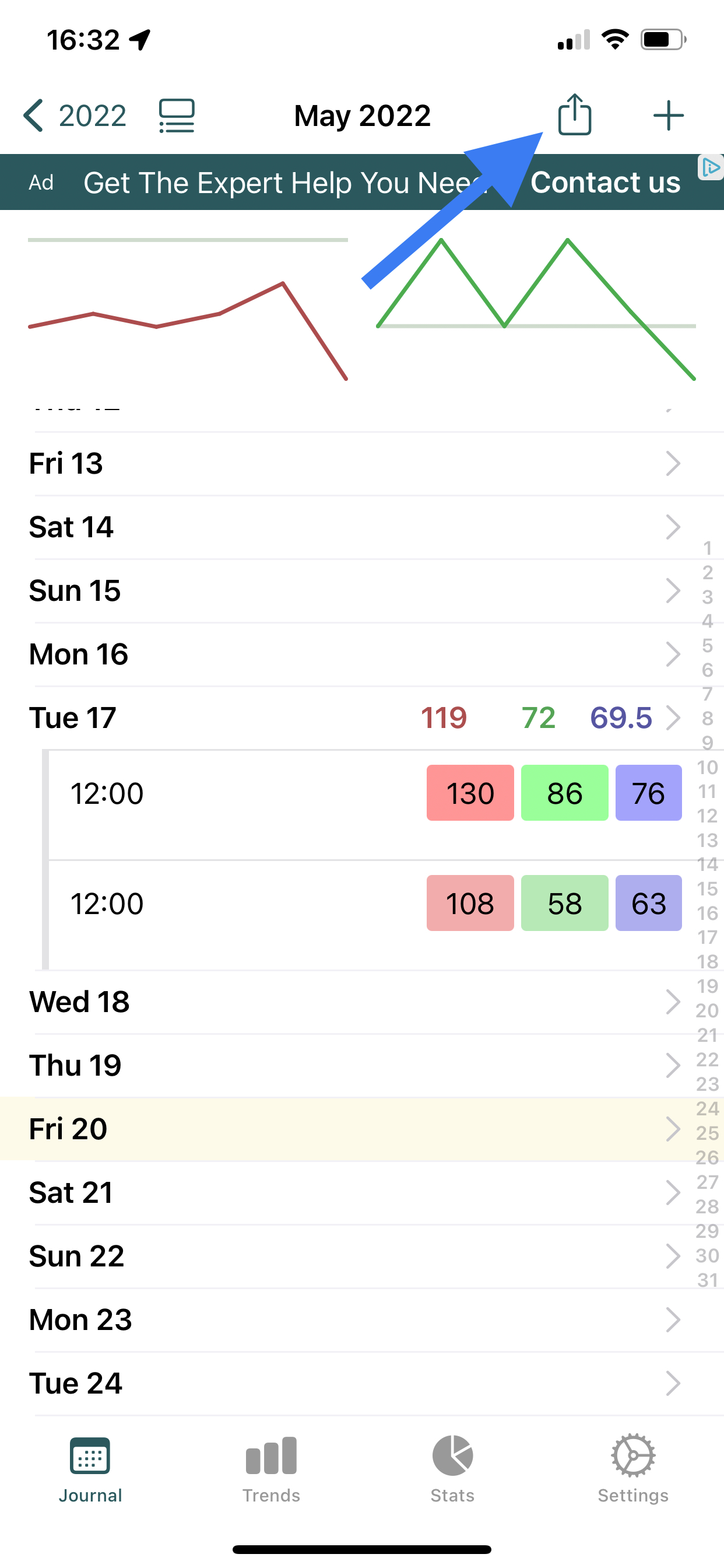
You can add a new record by either 1. pressing on the day or 2. pressing + in the top right. Both options are shown to by the arrows in the image below.
Can I record multiple times a day?
Yes. You can add many records per day, as shown above. Just press on the day again, or on +, to do this.
How do I delete a record?
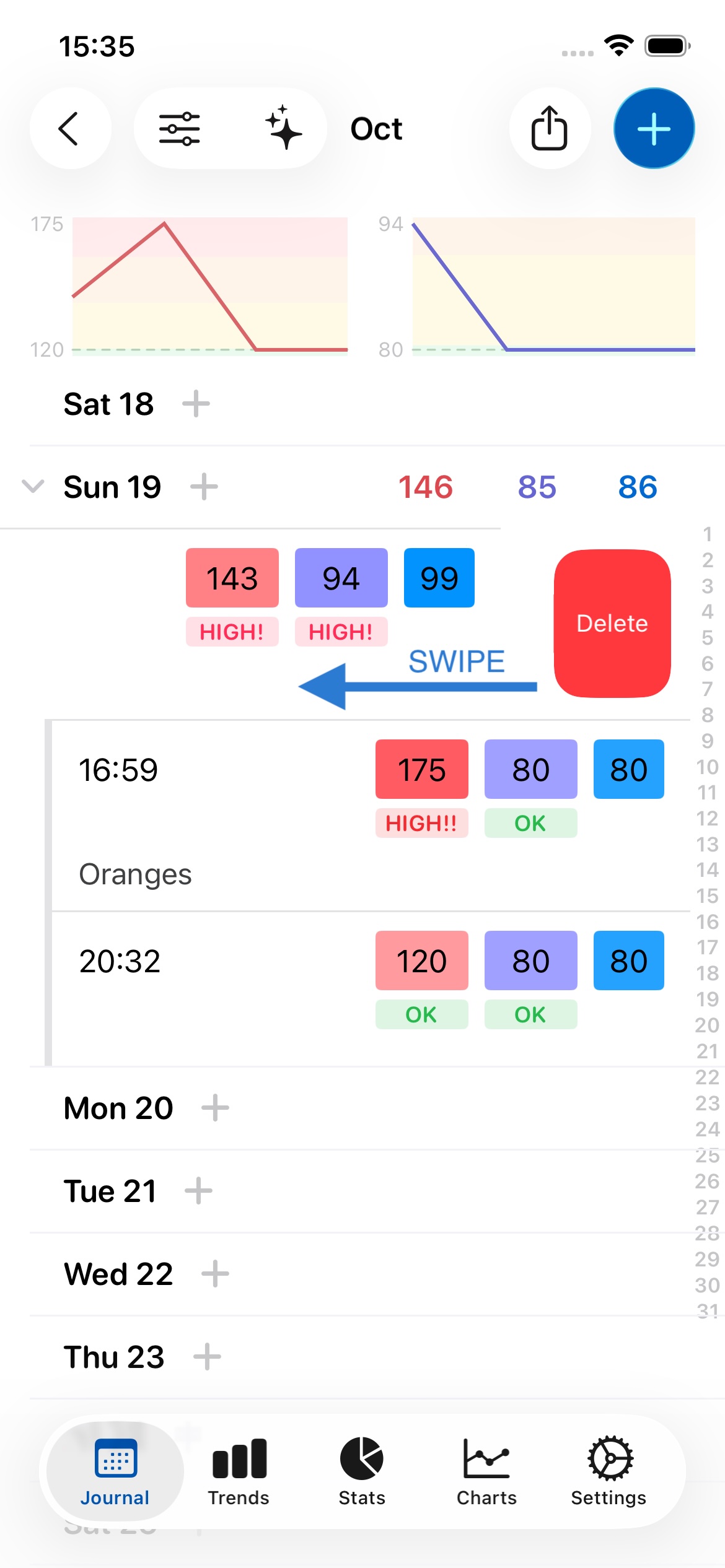
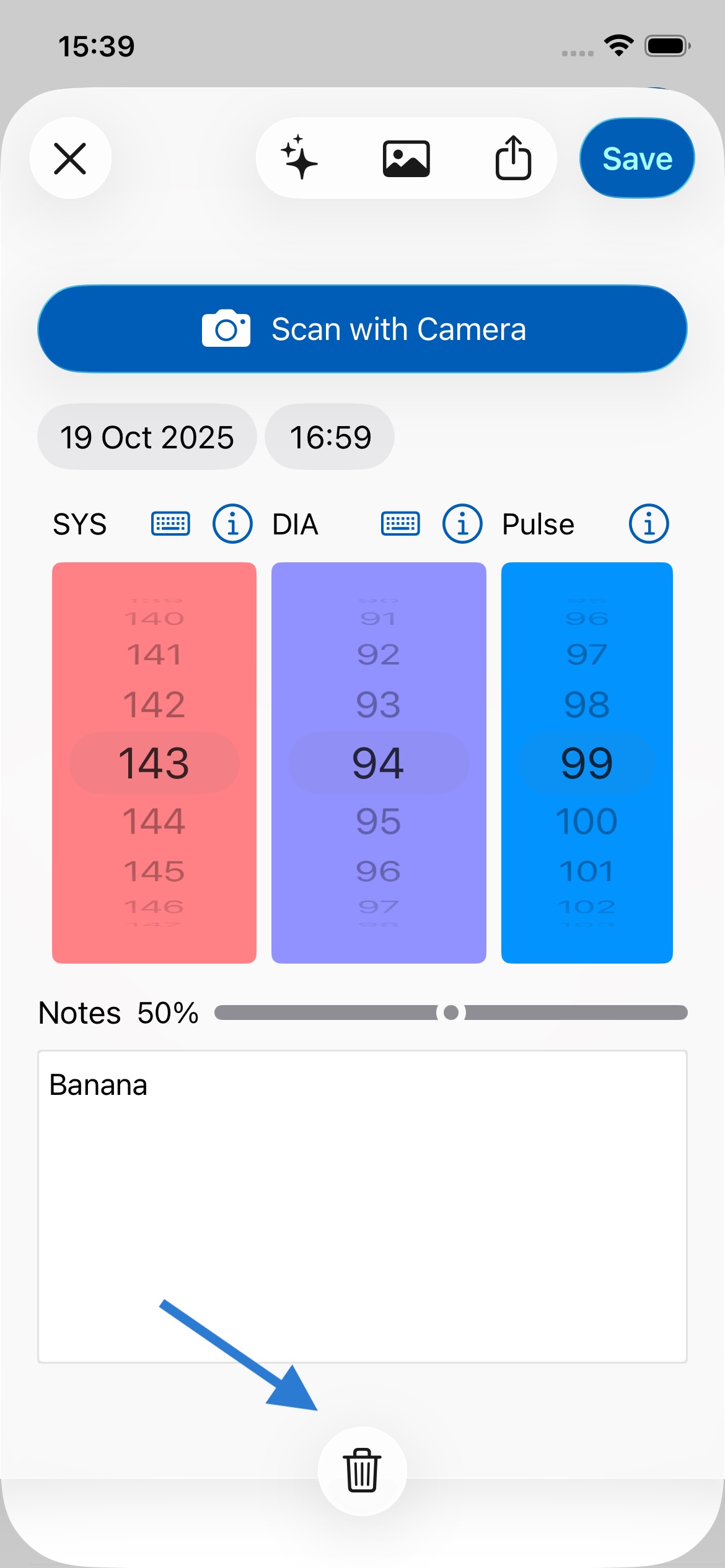
To delete a record, you can swipe left on the record and press Delete, or press on the record to open it and press the trash can icon in the top left of the screen. Both methods are shown below:
Why do I see a sentiment score above my notes? Is this private?
As you write your notes, an emoji appears above them to indicate the predicted sentiment. This feature can help you understand if your writing comes across as overly negative or positive, or remind you of what is or isn't working, serving as a guide for your writing. By default the sentiment uses the app's privacy-respecting AI; if you turn AI off, it is calculated entirely on your device using Apple's Natural Language framework instead. If you prefer, you can disable this feature in Settings under General.
How do I print?
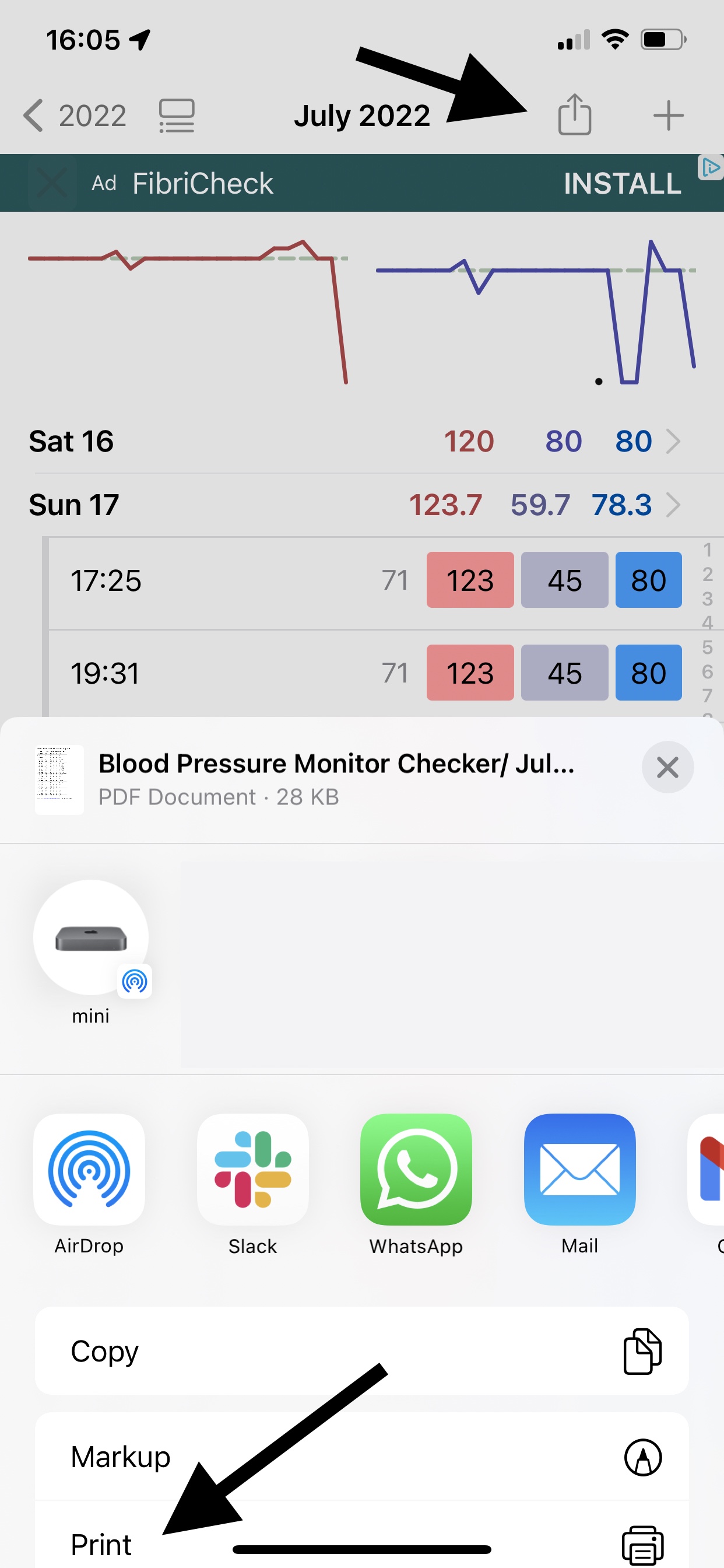
When you press export (as shown below), you'll see a share sheet. On this, scroll down and press Print (as shown below). You'll need an Apple AirPrint compatible wireless printer to print wirelessly from your iPhone or iPad.
If you don't have an AirPrint compatible wireless printer, you can buy one here.
Can I share any medical information I'm tracking with my doctor?
Yes. The app makes this easy to do. Press the share button (as shown below), select PDF, and then choose your Mail app. The PDF report will be attached to an email you can then send to your doctor.
How can I hide averages or totals in Journal?
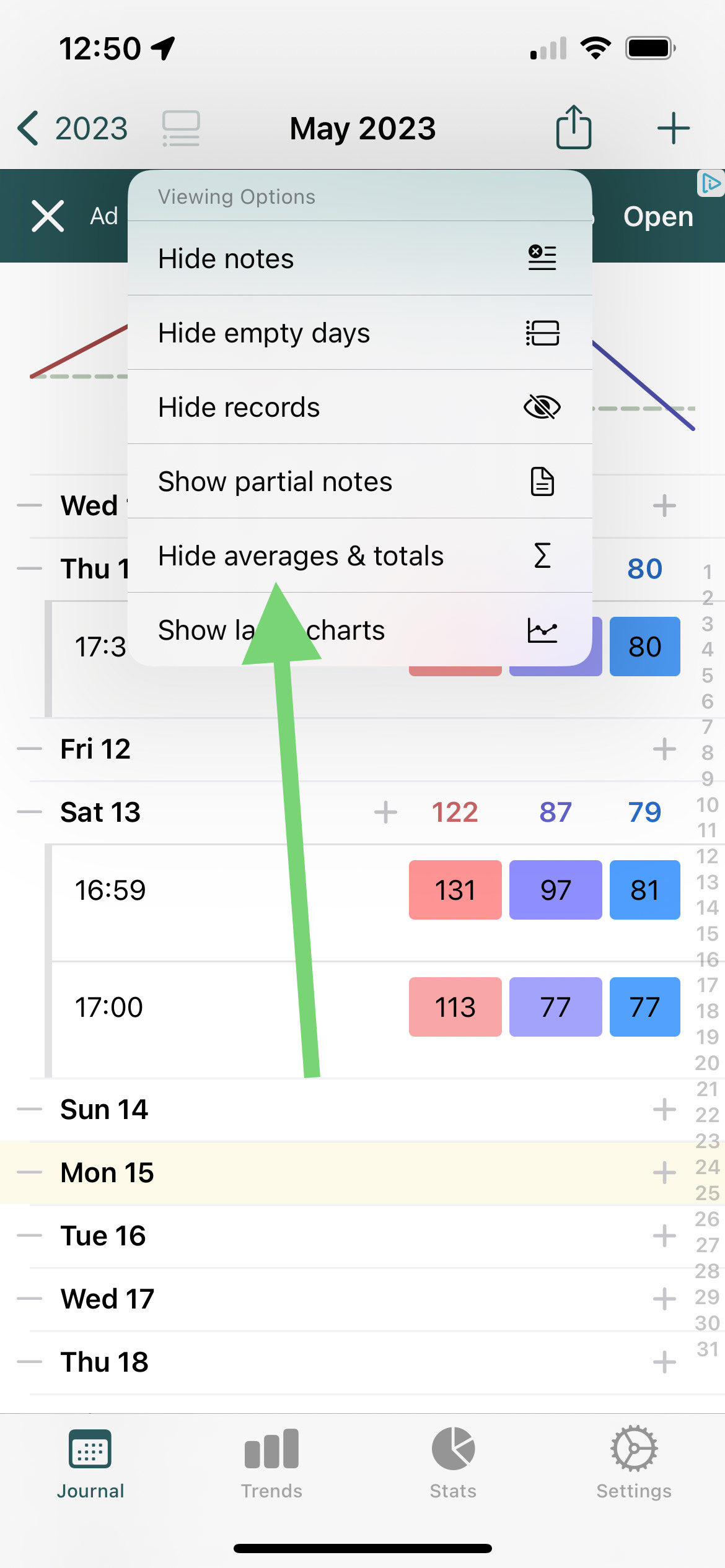
You can hide averages and totals in view options, as shown below. That will then only show your entered values, and not averages. This can be useful if you find having the averages/totals in between your entered data confusing.
Can I export to Excel or similar spreadsheet software?
Yes. Follow the instructions above, but select Excel or CSV instead of PDF as output format. Then either save the file on your device, or email it to yourself.
Excel format is more reliable, while CSV may be more widely compatible - both should open in Excel and similar software, like Apple Numbers or Google Sheets.
Who can I send my data to?
You can email it to anyone you like. You might want to periodically email your data to yourself for safekeeping and backup purposes. You can also save the PDF or CSV file on your device for later use.
How do I scroll straight to the current day in month view?
Double-tap the Journal icon in the tab bar at the bottom of your screen.
How do I view data from previous months?
To view data from a previous month (for example, September data when you're currently in October):
- Go to the Journal tab
- Press the back button in the top left corner - this will take you to month selection
- Select the month you want to view (e.g., September)
- If you don't see your data, press the Journal options button (the 2nd button along the top, next to the back button) and ensure all display options are set to "Show"
Your data is always saved and accessible - you can navigate between months at any time to view your historical records.
If you still don't see your data after checking the month view: Go to Settings > Data > Manage Backups and look for any backups from the month you're trying to view (or early in the following month). If you find a backup from that time period, you can restore from it to recover your data. This can help if you've reinstalled the app or if there was a sync issue.
How do I change the time or date on a record?
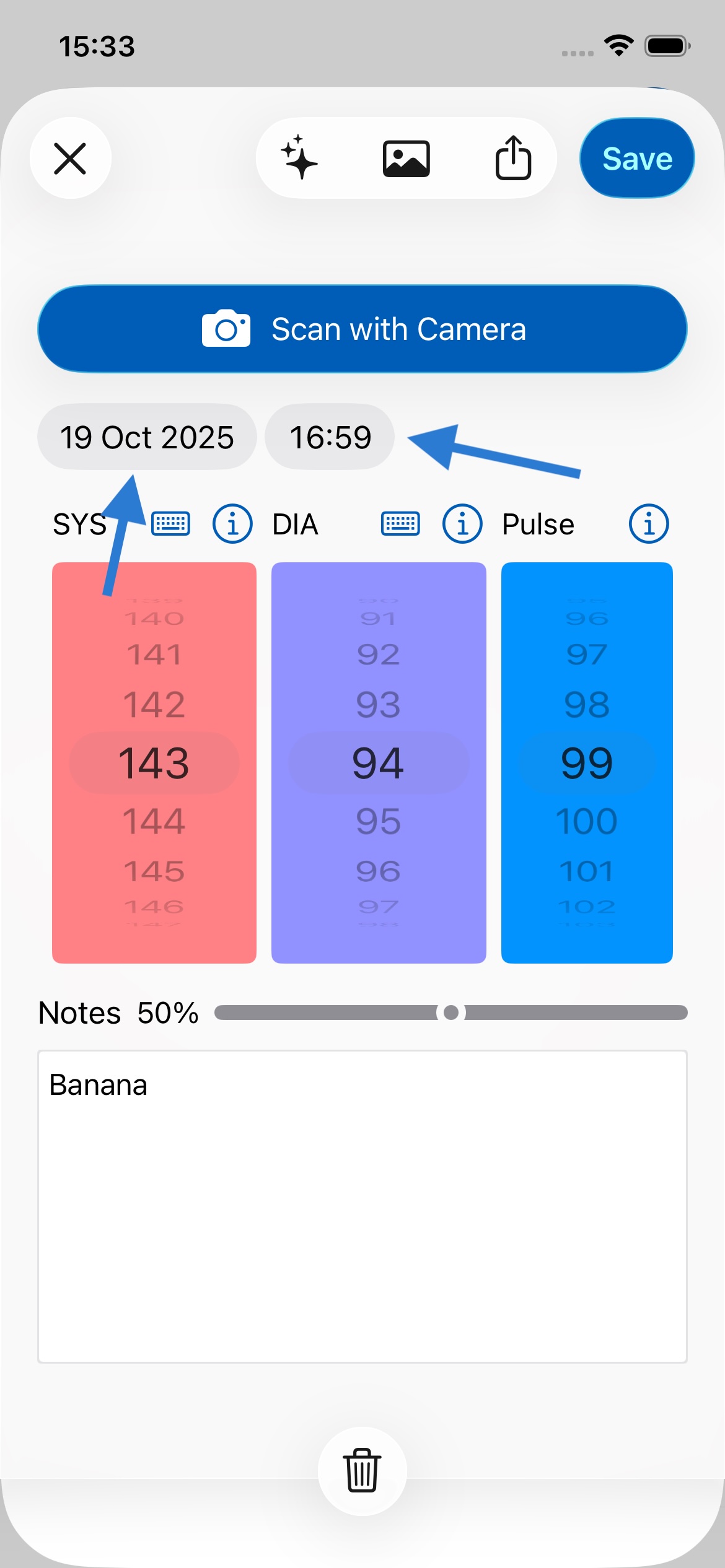
Open a record and tap on the date or time at the top of the screen, as shown below. A calendar will appear where you can select the correct date, then press Save.
Tip: To always create a record for today's date, press the + next to the current day, or press the + in the top right of the screen. If a record ended up on the wrong date, it may be because the + was pressed next to a different day — some users use this for historical records or future planning.
How safe is my data?
Feeltracker encrypts your data on your device, so even if your iPhone or iPad is lost or stolen, no one can read your records without your passcode, Face ID, or Touch ID. Data is also encrypted in transit when it syncs to your iCloud account.
Where is my data stored?
Feeltracker stores your data on your device and in your own private iCloud account — never in an account on our servers. The apps use the same Apple technology as Notes and Photos (CloudKit) to save and sync entries across your devices, which makes it both reliable and private.
Can anyone else see my private data?
No. Nobody at Feeltracker can see your records: they live on your device and in your own iCloud account, on servers managed by Apple, and we keep no copy.
The one exception is an AI feature you choose to run. To answer you, the app sends the data that feature needs to OpenAI through a small relay server of ours that stores none of it. No one at Feeltracker reads those requests. You can switch AI to on-device Apple Intelligence, or turn AI off entirely, in the app's AI settings — full detail is in our privacy policy.
Why does my data need to be saved on iCloud?
iCloud enables your data to be backed up, and synced between your devices. Then if you lose your phone or get a new one, your data can be restored from iCloud.
Why isn't my data syncing across my devices?
Your data should automatically be synced across your devices. Ensure that:
- You're logged into the same iCloud account on all devices.
- All iOS devices are on the same version of iOS (preferably the latest).
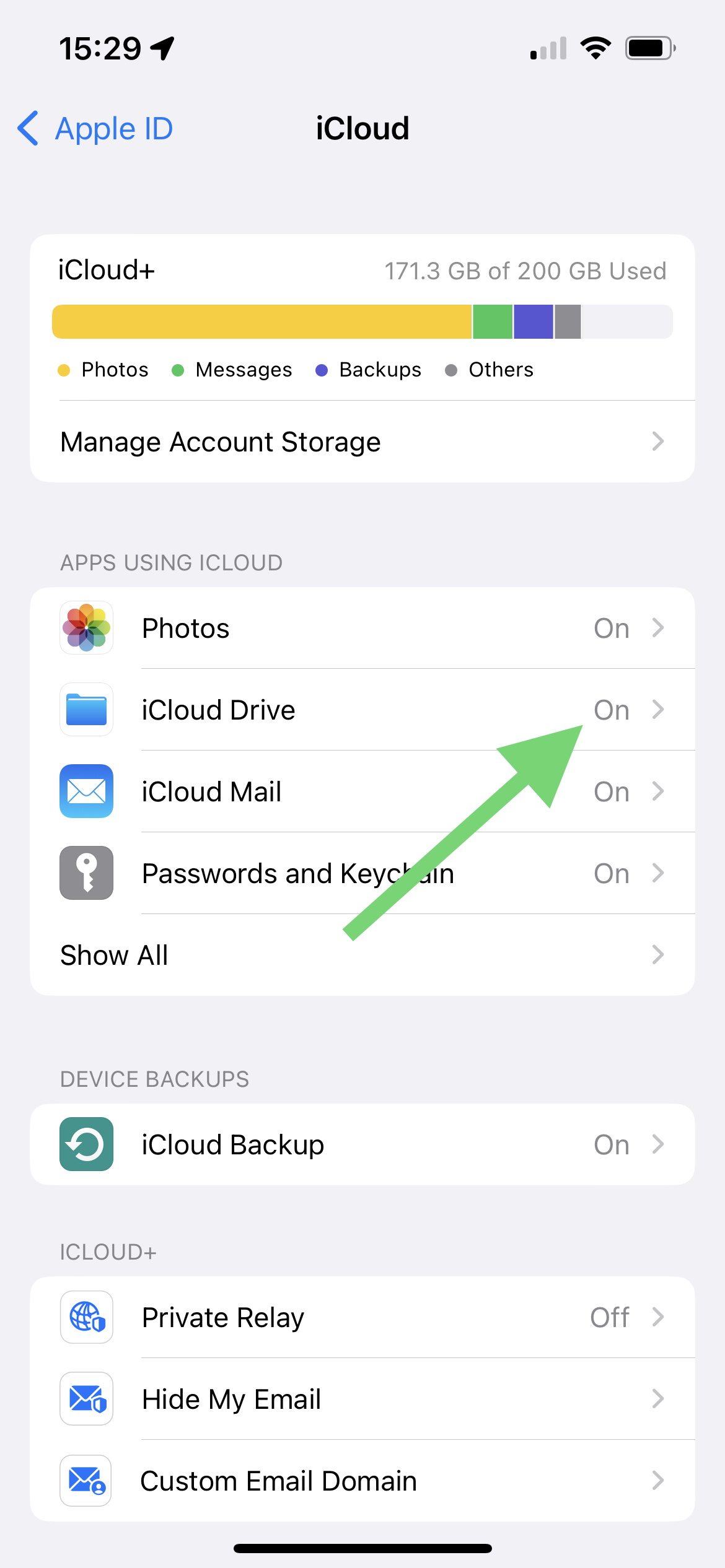
- Ensure iCloud drive is On on all devices (in Settings > Your Name > iCloud > iCloud Drive, as shown below.
Do I have to have a subscription for each device?
No. One subscription unlocks premium features on all devices signed into the same iCloud account. If premium doesn’t show up on another device, go to Settings > Subscription (or the equivalent in the app) and press Restore Purchase. Make sure every device is signed into the same iCloud account.
How do Backups work?
Backups are made automatically every week by default (although you can turn this off in Settings). You can also create manual backups in Settings > Data.
How many backups are made? Should I delete them?
There’s no limit to number of backups made. Backups can go back years, and generally take very little space, so deleting them won't make much difference to your device's storage. If you need to free up space, it's better to delete heavier files on your device such as photos and videos.
Are backups synced to iCloud?
Currently backups aren’t synced on iCloud, but your current data is. That means if you get a new iPhone or iPad, your current data will appear there too, but not your backups, as each device keeps its own local backups.
This means that, for example if you delete a record on your iPhone and it’s gone from iCloud and your phone, you could still go back to your iPad and restore from one of its older backup snapshots.
Do I need an account to use this app?
No. Feeltracker apps need no account, no sign-up, and no email address — download and start tracking straight away. Syncing uses your existing iCloud account and Apple's infrastructure, so it's fast, reliable, and secure without us ever holding a login for you.
Can I use this app on both my iPhone and iPad?
Yes, and your data is automatically synced between them if logged into the same iCloud account. On the iPad version you have more space for notes, and can see more items.
Is there a Mac version of the app?
Yes. Feeltracker apps run on Apple Silicon Macs (M1 and newer), and your entries sync there automatically through the same iCloud account. On the Mac you can resize the window to see more data on a larger screen. Download the Mac apps here from your M1 or later Mac.
I would like to suggest a feature or improvement for the app.
We'd love to hear your feedback. Email us at [email protected].
Can I turn off the sound?
Yes. Go to the Settings tab and turn off the slider next to Enable Sound Effects.
What's the Trends tab for?
Trends lets you identify what's on your mind, why, and the effect it's having on you. Scroll down for more detail and some examples on how Trends works in your app.
Why do I not see anything in Trends?
For Trends to work, you need to take notes when you save records. You can do this on any record in the Notes field.
What's the Stats tab for?
This currently shows you all records between 2 dates, and an average/total in between that range. This enables you to get an average/total for any period.
What’s the difference between Journal, Trends and Stats?
Journal is the main diary/log section which lets you input data and view it on a monthly/yearly/lifetime basis, with averages and totals
Trends lets you identify patterns in the data you're recording in Journal so you can act on them.
Stats lets you see your data in chronological order (newest item first) without monthly or yearly grouping, and let's you see averages and totals between any two dates.
Should I log out or shut down, to save phone memory and battery?
There's no need at all to log out – the device automatically unloads apps/resources from memory as needed.
Modern iPhones and iPads have a lot of energy-efficient memory, so apps can stay in memory for a long time without any adverse effects. Access to this memory is secure, and is already proteced by Face ID, Touch ID, or a passcode.
If you'd like to close an app anyway (for example if it has become unresponsive) you can follow Apple's instructions here.
There's no need to login either, as the app uses your iCloud account so already can sync/backup data across your devices, similar to how the Photos and Notes app do, without requiring any identifying personal data to be shared.
If I don't log out, is that safe?
Yes. As soon as you press the side button on the device, to lock it as you normally do, no one can get into your app or data while it's locked.
Does the app show ads?
No. The Feeltracker apps don’t show third-party ads and don’t use any ad networks or ad-tracking SDKs (such as AdMob). Your personal and health data is never shared with advertisers. The apps are funded entirely by optional premium subscriptions and one-time purchases through the App Store.
Is Feeltracker free?
Yes. Every Feeltracker app is free to download and free to use, with no ads and no account needed. Free for everyone: unlimited entries, all charts and trends, Apple Health sync, PDF/CSV/Excel/JSON export, AI Camera Scan, and real AI features every day — Quick Chat, Ask a Question, Voice Summary, Make Me Laugh, Calm Me Down, and a daily Quick version of the bigger reports.
An optional Pro subscription unlocks the full-depth AI features (Deep Research, Doctor Summary, Pattern Detective, Goal Assistant, Pro Chat, Voice Chat, Daily Insights, on-device Apple Intelligence, and the tools built for each app) and raises the generous daily limits.
What does my subscription pay for?
Your subscription funds ongoing development — new features, bug fixes, translations, and server costs for optional AI features. Because we don’t run ads, subscriptions and one-time purchases are the only way we fund the app, and they keep the experience clean and private for everyone.
Why should I subscribe? Why can’t I pay just once?
A small regular subscription fee makes the app easier to try without large upfront cost — and the yearly Pro subscription now includes a free 1-month trial, so you can explore everything before paying anything. Long-term, subscription revenue helps us maintain the app and funds the development of useful new features.
Is there anything I can do to support this app?
We're reliant on good reviews to grow the app and keep building new features. Please leave a review by following the link for your app:
How do I cancel my Feeltracker subscription?
Feeltracker subscriptions are billed by Apple, so you cancel them in your Apple account, not in the app: open Manage Subscriptions (or go to iOS Settings, tap your name, then Subscriptions), choose the Feeltracker app, and tap Cancel Subscription. You keep Pro features until the end of the period you've already paid for, and your records stay on your device either way — the free version with all core features keeps working as before.
If you're on the free 1-month trial (included with yearly subscriptions), cancelling before the trial ends means you pay nothing at all. And if you subscribed by accident, cancel as above and request a refund from Apple at reportaproblem.apple.com — recent purchases are usually processed quickly.
Before you go, tell us what wasn't working at [email protected] — fixes and improvements based on user feedback are often shipped in an app update the same or next day.
Does the app collect my name, date of birth, or gender?
Only if you choose to save them. You can optionally fill in a small profile (name, date of birth, gender) to personalize the experience — it’s completely optional and the core tracking features work without it. When provided, profile details stay on your device and in your own iCloud, never on our servers.
How are my profile details used?
If you use an optional AI feature (like chat, insights, or tailored feedback), the app can include the relevant bits of your profile — typically your first name, age (worked out from your date of birth), and gender — with the request, so the AI can give you more relevant answers (for example, age-appropriate health guidance or the right pronouns). This only happens when you actively use an AI feature. You can edit or clear your profile, or turn off AI features, any time.
What AI services does the app use?
The apps use three kinds of AI, all optional and on-demand:
1. On-device AI (Apple’s Natural Language API) for things like sentiment scoring — runs entirely on your device, no data leaves it.
2. Apple Intelligence on supported devices — processed on-device where possible, and via Apple’s Private Cloud Compute for heavier tasks. Apple doesn’t store or see your data, and it isn’t used to train Apple’s models.
3. OpenAI API for chat, insights, and tailored feedback — only used when you actively trigger it. Only the relevant data (and, if saved, limited profile context) is sent. OpenAI doesn’t use API data to train their models.
Is Apple Health required?
No. Apple Health integration is completely optional. The apps work fully without it — you can enter readings manually, use AI Camera Scan, or import CSVs. When you do turn it on, you can pick which data types the app can read or write, and revoke access any time in iOS Settings.
How do I delete my data?
You’re in control:
- Delete individual entries by swiping on them.
- Delete your profile (name, date of birth, gender) at any time in the app’s profile screen.
- Delete all app data at once from the app’s settings.
- Removing the app and its iCloud backup in your iOS Settings clears everything. Because we don’t keep a copy on our servers, there’s nothing extra for us to delete for you.
Can I use AI without sending my data to the cloud?
Yes. Feeltracker includes an Apple Intelligence mode that runs AI entirely on your device using Apple’s Foundation Models — nothing is sent to our servers or to OpenAI. It needs iOS 26 or later on an Apple Intelligence–capable device (iPhone 15 Pro or iPhone 16 series and later, iPad and Mac with Apple Silicon) plus a Feeltracker Pro subscription, which makes on-device AI unlimited. You can switch between on-device and cloud AI, or turn AI off completely, in the app’s AI settings at any time.
What do I get with a Feeltracker Pro subscription?
Feeltracker Pro unlocks the full-depth version of every AI feature and raises the daily limits — tracking itself is already free, so Pro is only about the AI.
Pro includes Pro Health Report, Deep Research, Pattern Detective, Goal Assistant, Doctor Summary, Sick Note, Text Summary, Generate Story, Personal Quiz, Pro Chat, Voice Chat, Spoken Feedback, the Daily Insights banner, private on-device Apple Intelligence, advanced PDF reports, and the tools built for each app: Pro MAP Report (Blood Pressure); Cognitive Reframing, Trigger Identifier and Sentiment Timeline (Mood Journal); Theme Explorer (Daily Journal); Pro Dream Analysis and CPAP Report (Sleep Journal); Meal Planner and Exercise Planner (Weight Journal). One subscription covers your iPhone, iPad, and Mac when they use the same Apple account.
Do Feeltracker apps work offline?
Yes. Everything you actually track works offline — adding and editing entries, photos, charts, trends, stats, backups, and PDF, CSV, Excel, and JSON exports all run entirely on your device.
An internet connection is only needed for three optional things: syncing to your other devices through iCloud, the cloud AI features, and Apple Health imports from other apps. Anything you record offline syncs automatically the next time you're online.
Which iPhone, iPad, and Mac models do Feeltracker apps support?
Feeltracker apps run on iPhone and iPad with iOS 16.0 or later, and on Apple Silicon Macs (M1 and newer). They're universal apps, so one purchase covers all your devices and your data syncs between them through your own iCloud account.
Two features need newer hardware: the on-device Apple Intelligence AI mode requires iOS 26 or later on an Apple Intelligence–capable device, and Mental Health (State of Mind) sync with Apple Health requires iOS 18 or later. Everything else works on any supported device.
How long does Feeltracker keep my data on its servers?
Feeltracker keeps no copy of your health records on its servers at all — your entries live only on your device and in your own iCloud account, for as long as you keep the app.
When you run a cloud AI feature, the request passes through our relay server, which stores none of the request or the reply. It does keep a cost record for each request — date, app, feature, AI model, token counts, and estimated cost, with no health data, no message text, and nothing that identifies you — and those records are deleted after 30 days. OpenAI separately retains API data under its own policies (currently up to 30 days). Full detail is in our privacy policy.
Is Feeltracker available in my language?
Feeltracker apps and this website are fully localized in 32 languages: English, Spanish, French, French (Canada), German, Italian, Dutch, Catalan, Portuguese (Portugal and Brazil), Swedish, Norwegian, Danish, Finnish, Polish, Russian, Ukrainian, Czech, Slovak, Romanian, Croatian, Hungarian, Greek, Turkish, Arabic, Hebrew, Japanese, Korean, Simplified Chinese, Traditional Chinese, Thai, and Vietnamese. Arabic and Hebrew include full right-to-left layouts.
The apps follow your iPhone's language automatically, and you can also choose which language the AI replies in, independently of the app's language, in the AI settings.
Will I lose my data if I delete the app or get a new iPhone?
No — as long as you're signed into the same iCloud account, your data comes back automatically. Your entries sync to your own private iCloud, so reinstalling the app, or setting up a new iPhone or iPad, restores everything on its own.
Before switching or reinstalling, it's worth a quick check that iCloud Drive is on (iOS Settings > your name > iCloud > iCloud Drive) and that your latest entries appear on your other devices. The app also keeps automatic local backups (Settings > Data > Manage Backups) as an extra safety net.
How do I get a refund, or change my billing details?
All payments, invoices, and refunds are handled by Apple, not by us — we never see your payment details, so we can't charge you directly, issue refunds ourselves, or edit invoice details.
To request a refund, go to reportaproblem.apple.com, sign in with your Apple account, and choose your Feeltracker purchase — Apple usually decides within a day or two. Billing and invoice details (like your address) are managed in your Apple account settings. If something went wrong with your purchase, email us at [email protected] too — we'll always try to help.
Is there a free trial?
Yes. The yearly Pro subscription includes a free 1-month trial. If you cancel during the trial in Manage Subscriptions, you won't be charged anything.
And remember: the core tracking features are free forever anyway — no trial needed. The trial is just for exploring the full-depth Pro AI features before deciding.
Blood Pressure Journal App
Does the app connect to my blood pressure monitor via Bluetooth?
The app doesn't pair with monitors over Bluetooth — but that doesn't mean typing everything by hand. There are three ways to get readings into the app:
AI Camera Scan (the easiest): after taking a reading, point your iPhone's camera at your monitor's display and the app reads the numbers automatically. It works with virtually any monitor that has a digital display, regardless of brand or model — no pairing, no setup, and it takes just seconds. Camera scanning is free for everyone, with a generous daily allowance.
Apple Health import: if your monitor came with its own app that syncs readings to Apple Health (many Bluetooth monitors do, such as OMRON connect), the app can import them from Apple Health automatically. Turn this on in Settings > Data > Apple Health, with both read and write permissions enabled.
Manual entry: you can always type in a reading in a few seconds with the + button.
How does AI Camera Scanning work?
After taking your blood pressure reading, open the app and tap the "+" button, then select "Scan with Camera." Hold your phone steady about 6-12 inches away from your monitor's display, making sure the numbers are clearly visible and well-lit. The app will automatically read the systolic, diastolic, and pulse values. For best results, ensure good lighting and keep your phone steady while scanning. This works with most digital monitors including OMRON, Microlife, and Beurer brands.
Why am I seeing duplicate entries?
This is usually caused by Apple Health sync configuration. The most common issue is having only write permissions enabled for Apple Health, but not read permissions. To fix this: Go to Settings > Data > Apple Health, and make sure BOTH read AND write permissions are enabled for Blood Pressure and Heart Rate - not just write. The app needs read permission to check if a reading already exists before importing from Health.
Can I track readings for multiple family members?
A tags feature is coming within the next few months that will let you track readings for multiple people on one device. You'll be able to tag each entry with a person's name and then generate individual reports for each family member.
My data isn't syncing between my iPhone and iPad. Why?
First, make sure you're signed into the same iCloud account on both devices. Go to Settings > [Your Name] and check the Apple ID. Second, verify that iCloud Drive is enabled on both devices (Settings > [Your Name] > iCloud > iCloud Drive). Your data syncs automatically through iCloud, but it requires an internet connection and can take a few minutes. Try opening the app on each device and pulling down to refresh.
What does the subscription include? What's free?
All core features are free for everyone — unlimited entries, AI camera scanning, all charts and trends, Apple Health sync, and PDF/CSV/Excel/JSON exports — and every user gets real AI features free every day, including Ask a Question, Quick Chat, Voice Summary, and quick versions of the reports. The optional Pro subscription unlocks the full, most in-depth AI features (Deep Research, Doctor Summary, Pattern Detective, Pro Chat, Voice Chat, and more), runs them on our most capable AI, and raises the generous daily limits. The apps never show ads, whether you subscribe or not.
What is MAP and should I track it?
MAP (Mean Arterial Pressure) represents the average pressure in your arteries during one cardiac cycle. It's calculated automatically for every reading. MAP is particularly important for LVAD (Left Ventricular Assist Device) patients and others with specific cardiovascular conditions. To enable MAP display, go to Settings > Blood Pressure > Show Mean Arterial Pressure (MAP). Customizable MAP ranges are coming in version 2.8.x.
How do I use note templates to save time?
When entering a note (like "Morning reading - before medication"), tap the "Template" button at the bottom left of the notes field and save it as a template. Next time you enter a reading, tap "Template" again and select from your saved templates - the text is inserted instantly. This is great for recurring notes like "Morning - pre-medication" or "Evening - after dinner."
What's too high or low a blood pressure?
The app uses the ACC/AHA ranges by default: below 120/80 mmHg is normal, 120-129 systolic (with diastolic below 80) is elevated, and 130/80 or higher is high blood pressure. Below 90/60 is low. One reading outside these ranges is not a diagnosis - repeat it, and talk to your doctor about the pattern rather than a single number. If a reading is above 180/120 mmHg and you have symptoms such as chest pain, breathlessness, weakness or vision changes, seek emergency care immediately.
What's the ideal blood pressure?
For most adults, below 120/80 mmHg is considered normal, and below 90/60 mmHg is low. Targets vary with age, sex, pregnancy, and conditions such as kidney or heart disease, so your doctor may set you a personal target - use theirs where it differs. The app's colour bands follow the ACC/AHA ranges by default and can be adjusted in Settings > Blood Pressure > Customize Blood Pressure Ranges.
How do I measure my blood pressure?
Blood pressure is measured using a digital blood pressure monitor. Here you can find blood pressure monitors that work great with the Camera Scan AI feature. The app can automatically read values from most digital monitors including OMRON, Microlife, and Beurer brands.
What's Trends for in Blood Pressure Journal?
With Trends, this app takes your data and notes, and shows what things affect you and how. For example, you could see that you meditated 20 times last year, and that meditation lowers your blood pressure. Conversely, you could see that every time you meet Bob, you argue, and he raises your blood pressure. The more you use notes, the more useful Trends can be.
Can you explain Trends in Blood Pressure Journal with an example?
For example, you go running 10 times. 5 times, your blood pressure goes down by 10, and the other times it goes down by 5. Trends will show that on average, running helps reduce your blood pressure by about 7.5 points.
Can my iPhone or iPad measure blood pressure by itself?
No. No phone or tablet can measure blood pressure on its own — that's a hardware limitation of every smartphone, not just of this app. You'll need a blood pressure monitor with a cuff to take the actual reading.
What the app does is make recording and understanding those readings effortless: point your camera at the monitor's display and AI Camera Scan enters the numbers for you, then the app tracks, charts, and analyzes everything over time and turns it into reports you can share with your doctor.
A normal reading shows as "high" — can I change the blood pressure ranges?
Yes. Go to Settings > Blood Pressure > Customize Blood Pressure Ranges to set exactly where each color band starts and ends, so the app matches the guidelines your doctor uses.
This is also useful when your doctor gives you personal targets — for example, keeping systolic above 100 because of a kidney or heart condition. Your custom ranges then apply everywhere: in the journal, the charts, and the reports.
I scanned a reading and pressed Save, but I can't see it in the app. Where did it go?
Almost always the reading was saved — just on a different date than you expected. A new record is created for the day you selected before opening the scanner, so if you pressed + next to a different day, the reading lands there.
Check the days around today in the Journal, and also make sure all display options are set to "Show" (the Journal options button along the top). If you still can't find it, email us at [email protected] from the app's Settings so we can help.
Mood Journal App
What's Trends for in Mood Journal?
With Trends, this app takes your data and notes, and shows what things affect you and how. For example, you could see that you met Jane 20 times last year, and that on average, Jane makes you very happy. Conversely, you could see that every time you meet Bob, you argue, and he makes you unhappy. The more you use notes, the more useful Trends can be.
Can you explain Trends in Mood Journal with an example?
For example, you meet Jane 10 times. 5 times she made you very happy (+2), and 5 times she made you fairly happy (+1). Trends will show that on average Jane makes you quite (+1.5) happy.
Daily Journal App
What's Trends for in Daily Journal?
With Trends, this app takes your data and notes, and shows what words are most on your mind. For example, you could see that you used a word 20 times last year. Conversely, you could see that you used another word 50 times - a lot more often. The more you use notes, the more useful Trends can be.
Can you explain Trends in Daily Journal with an example?
For example, you write about Jane 120 times in your notes, more than about your job, which you write about 50 times. Trends in this case shows that clearly the top thing on your mind was Jane.
Sleep Journal App
What's Trends for in Sleep Journal?
With Trends, this app takes your data and notes, and shows what things affect you and how. For example, you could see that you drank a lot of coffee last week, and that because of this you had less sleep. Conversely, you could see that every time you eat salad or go to the gym, you lose sleep better. The more you use notes, the more useful Trends can be.
Can you explain Trends in Sleep Journal with an example?
For example, you drink coffee 10 times. 5 of those times, you underslept 2 hours, and the other 5 times you underslept 1 hour. Trends will show that on average, drinking coffee causes you to undersleep by 1.5 hours.
Weight Journal App
What's Trends for in Weight Journal?
With Trends, this app takes your data and notes, and shows what things affect you and how. For example, you could see that you ate fast food 20 times last year, and that over time, you gain weight when you eat fast food. Conversely, you could see that every time you eat salad or go to the gym, you lose weight. The more you use notes, the more useful Trends can be.
Can you explain Trends in Weight Journal with an example?
For example, you eat donuts 10 times. 5 times, your weight goes up by 0.1kg. The other 5 times your weight goes up by 0.3kg. Trends will show that on average, eating donuts makes your weight go up by 0.2kg.
How do I measure body fat?
Body Fat is reported by specially designed weight scales that measure body composition, as well as the weight. Here is an example of such scale, from Omron. There will be other options available too from other brands - the thing to look for is “Body Composition” as well as weighing scales.
Note also that even if you only enter weight, you’ll still see a BMI value (to the left of weight, color coded), which will give a broad indication of whether you are of a healthy weight (where green is good, and red is overweight).
Contact Us
If you have any questions or suggestions, do not hesitate to contact us at [email protected].